Understand the 3 types of dark mode
Before fixing any dark mode rendering issues, it’s important to understand that dark mode can happen at different levels depending on your email client and how they modifies your code.
No change: In this approach, the email client does not alter your colors at all. Whatever background, text, and image colors you coded are displayed exactly as-is, even when the user has dark mode enabled. You will see this behavior in Apple Mail and iOS Mail
Partial inversion: Partial inversion is where the client selectively flips certain colors, usually backgrounds and text, while leaving others untouched. This can lead to mismatches like dark text on dark backgrounds or light text on light backgrounds. This behavior is most commonly seen in Gmail onthe web and Gmail on mobile
Full inversion: Full inversion is the most aggressive form of dark mode. The client attempts to flip nearly every color in the email, including backgrounds, text, borders, and sometimes even images. Outlook on Windows is the most well-known example of this behavior.
6 Core best practices for dark mode rendering issues
Here are six practical strategies to make your emails more resilient and readable across different dark mode implementations:
Use transparent backgrounds
Hardcoded background colors are one of the first things dark mode clients try to override. When you force a light background, some clients will invert it aggressively, while others will leave it untouched and flip only the text. Both outcomes can hurt readability.
So, instead of hardcoding a color like this, use a transparent background. This gives the email client more flexibility to apply its own dark or light background logic. In partial and full inversion scenarios, transparency often results in fewer contrast issues and fewer unexpected color flips.
That said, transparency reduces control. If a section depends on very specific brand contrast or contains light text that must sit on a light background, this approach can backfire. Use it selectively, not everywhere.
Avoid pure black and pure white
Pure black and pure white are fragile in dark mode. These extremes tend to get inverted harshly, causing glowing text, halo effects, or washed-out sections. In some clients, they can also trigger accessibility issues when combined with forced inversion.
Instead, use softer values like Dark gray or Off-white. These colors hold up better when clients reinterpret them. They reduce visual strain and maintain more consistent contrast across light mode, dark mode, and inverted environments.
Force text colors carefully
One of the most common dark mode failures is text getting flipped while the background stays the same. This often results in dark text on dark backgrounds or light text on light backgrounds.
To prevent that, you can explicitly set the text color with CSS style. This anchors readability in clients who aggressively rewrite colors. However, forcing text colors everywhere can cause issues in inboxes that already handle dark mode well, especially when combined with background transparency.
- Prepare images for dark mode
Images are one of the trickiest elements in dark mode emails because inboxes handle them inconsistently. Here is how you can prepare differently to ensure your visuals remain clear
Logos
Use transparent PNG or SVG formats
Avoid dark logos placed directly on transparent backgrounds
Add subtle strokes, outlines, or shadows to preserve visibility
Background images
Expect them to be ignored, removed, or inverted
Always provide a solid fallback background color
Outlook on Windows fix using MSO styles
Outlook on Windows is infamous for breaking dark mode because it uses Microsoft Word’s rendering engine instead of a standard web engine. This engine aggressively inverts colors and can completely distort your carefully designed layout. Logos may disappear, backgrounds can turn dark unexpectedly, and text can become unreadable.
One effective approach is to force a light mode specifically for Outlook. By targeting Microsoft Office (MSO) using conditional styles, you can set your background, text, and table colors explicitly, preventing Outlook from applying its own dark mode rules.
This method doesn’t give you a true dark mode experience, but in many cases, it is better than allowing Outlook to apply unpredictable inversion. For critical sections like headers, buttons, and main content areas, forcing light mode ensures readability and preserves your design.
Test in real clients
Even if your email looks perfect in a browser preview or an email builder, dark mode issues often only appear in actual inboxes. Different clients handle dark mode differently, so testing in real environments is essential to catch problems before your subscribers do.
Use tools like Mailmodo to simulate multiple clients and devices. Additionallynative testing on real devices especially in Gmail and Outloo,k is crucial because these are the clients most likely to apply aggressive or partial inversion.
How to fix dark mode issues in real world
Step 1: Understand how dark mode impacts your emails
Dark mode doesn’t just change background colors. It can completely alter how your email renders across email clients. Additionally, different email clients render dark mode differently. Some email clients invert colors automatically, while others partially adjust them or leave them unchanged.
Here are the three common ways email clients handle dark mode:
- Full color inversion: all colors are inverted (white becomes black, and vice versa).
- Partial inversion: only light backgrounds and dark text are inverted.
- No change: the email looks the same in both modes.
Because every client like Gmail, Outlook, and Apple Mail behave differently, it often causes issues like:
- Logos or icons disappearing on dark backgrounds
- Background colors appearing uneven or distorted
- Text losing contrast or readability
- Images having weird color inversions
- Layout appearing broken
The tool displays your email in dark mode. Here, you can check for issues.
You can check how your email will be rendered in dark mode using a tool like Mailmodo's Dark Mode Previewer. All you need to do is send the email template to the email shown by the tool. This will allow you to identify the main issues that you need to work on solving.
Step 2: Fix the dark mode rendering issues
Once you've identified the problems or issues with the rendering of your emails in the dark mode, you can move on to resolving them one by one. Here are a few commmon fixes that you can do to avoid the errors or fix them if they already exist.
1. Use dark mode safe brand assets
If your logo or other images in the email have dark elements (like black text) and a transparent background, it can vanish against dark mode’s dark background. Additionally, it's very common to have images or logos inverted in a way that makes them unrecognizable.
You can fix this issue by using a version of your logo and images that have a white outline or a subtle stroke around them like this.
<img src="logo.png" style="background-color:#ffffff; padding:10px; border-radius:4px;">
2. Define email background and text colors
Many clients invert colors when no color is explicitly defined for the background and the text. This can make the text in the email very difficult to read if the contrast isn't right. So, don't leave backgrounds transparent and set a solid background color for every section or container and the text.
<body style="background-color:#f5f5f5;">
  <table style="background-color:#ffffff;">
    <td style="color:#333333; background-color:#ffffff;">
Some email clients support prefers-color-scheme media query that automatically apply dark mode styles. Use it to control color inversion behavior instead of relying on client-side inversion.
<style>
@media (prefers-color-scheme: dark) {
  .dark-mode {
    background-color: #121212 !important;
    color: #ffffff !important;
  }
}
</style>
4. Add fallbacks for clients without dark mode support
Not all clients support dark mode (or media queries). So, you must always design for both light and dark environments. You can do this by:
- Using default colors with minimalistic layouts that look good in both themes.
- Favouring high contrast between background and text.
- Including a neutral fallback background color like
#f5f5f5.
- Limiting color combinations that will clash when inverted.
This ensures your emails remain legible and attractive — even where dark mode isn’t supported.
Step 3: Test across clients and devices
You already know that every email client handles dark mode differently. So, it's important for you to always preview and test your design before sending.
Check how your email looks in:
- Gmail (web and mobile)
- Outlook (desktop and web)
- Apple Mail
- Yahoo Mail
You would also want to check out other email clients that your subscribers or customers may be using.
You can use an ESP like Mailmodo to do this. The test send feature allows you to see exactly how your email renders in light and dark themes across multiple clients and devices, helping you spot inconsistencies early.
But that's not all that Mailmodo does. In addition to allowing you to test your emails before you send, it even allows you to fix other email rendering issues, using its drag-and-drop email builder.
How to fix dark mode email rendering issues with Mailmodo
With Mailmodo's no-code drag-and-drop email buider, you don't have the need to spend your time and effort in finding the parts of the HTML or CSS code that have issues and fixing them. You can do it in a much more intuitive way.
Take a look at how you can fix some common dark mode email rendering issues using Mailmodo.
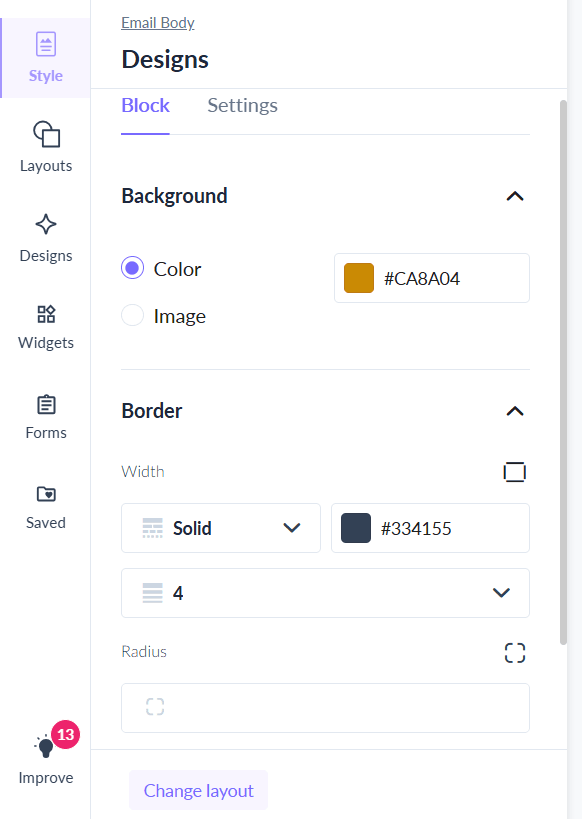
Logos disappearing in dark mode
- Open your email template in the email template builder
- Click the logo image
- Add a border for the logo and define the color and thickness of the border
- Click on the header block or card and choose a background color for the block
2. Small images inverted in Gmail
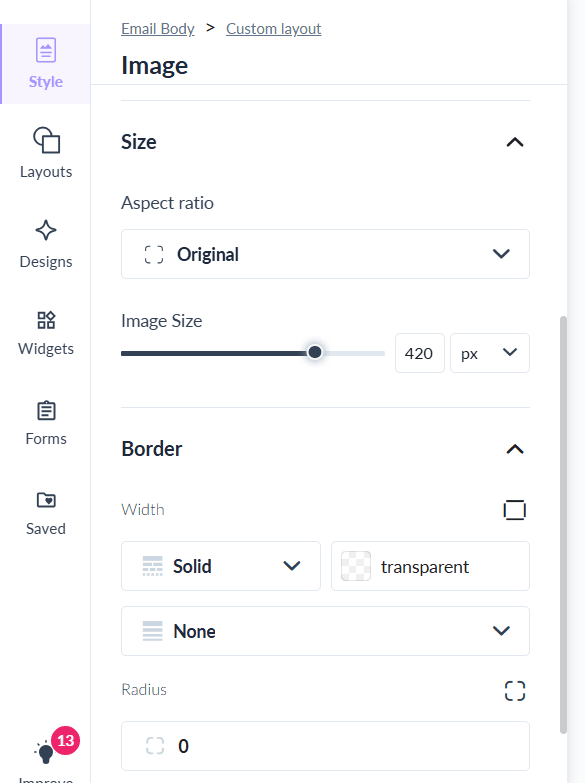
On Gmail, particularly the Android app, small images (usually under 100 pixels wide or tall) may have their colors inverted in dark mode. This can make icons or logos appear distorted or even unrecognizable.
Here’s what you can do to prevent that:
- Choose the image in the editor
- Increase the actual dimensions of your image using the image size slider (for example, from 60×60 px to 120×120 px) to help prevent inversion
- Add a thin white or light-colored border or background around the image to stop Gmail from changing its appearance in dark mode
3. Unreadable text
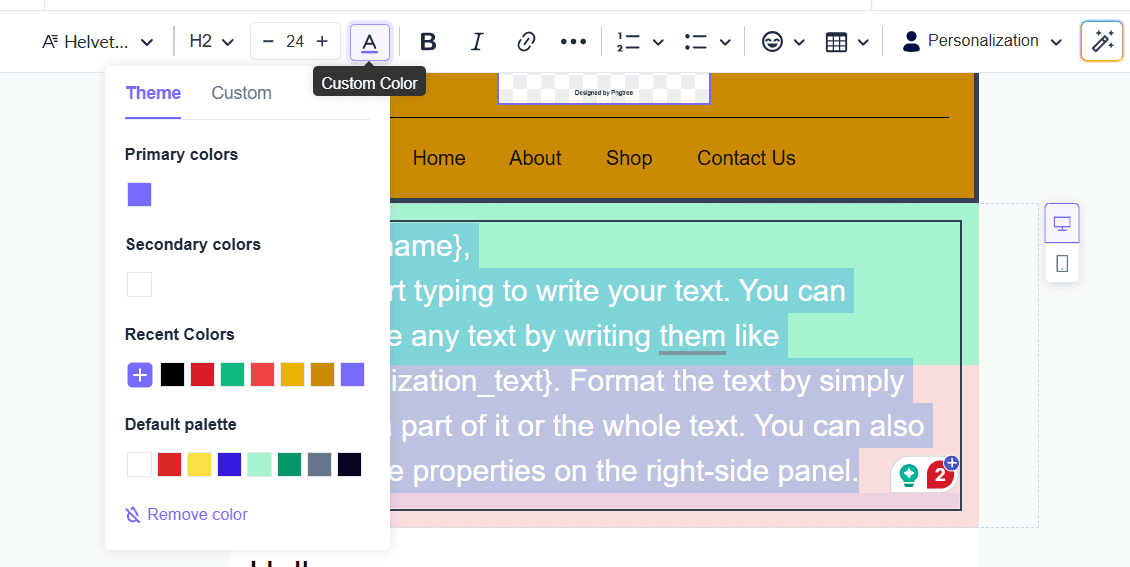
In dark mode, some email clients invert background and text colors automatically. If your email uses default or inherited styles, this can create low contrast and poor readability.
Here is how to fix it in Mailmodo:
Use the Text block to insert text
Manually set the text color using the text formatting options
Set the background color of the block to ensure a strong contrast
Final thoughts
Dark mode rendering issues pose a real risk for email engagement and brand perception. Without careful testing and adjustments, emails can display broken logos, inverted images, or unreadable text, undermining even the most carefully crafted campaigns.
Using Mailmodo’s visual editor and dark mode preview tools turns guesswork into control. By identifying issues early and applying the right fixes — from adjusting image size and contrast to setting text and background colors — you ensure your emails look great in every inbox. Start creating emails that render perfectly in dark mode with Mailmodo today.