

As your business grows, so do the kinds of emails you send. They can be marketing newsletters, product updates, support notifications, and transactional messages.
But when everything is sent from one generic address, things can get messy. Your recipients get confused, email providers start flagging your domain and soon, you’re seeing open rates drop because emails are landing in spam.
So, what’s the fix? Let’s explore the solution to this problem.
What is a sender email?
A sender email (like support@yourdomain.com) is the specific address used to send emails. These sender emails are tied to a sender domain, which is your authenticated domain (e.g., yourdomain.com) that email providers recognize you as.
Why using multiple sender emails matters
As we mentioned earlier, having a single sender email maybe confusing for your recipients. Having dedicated email addresses for different purposes or kinds of email you send provide you with:
Clarity and trust: Your users know exactly which team the message is from — marketing, support, sales and so on.
Maintained deliverability: If one sender email has deliverability issues, others stay unaffected. This gives you the chance to replace only a specific part of campaigns you run and not your entire email marketing process.
Here are some common use cases you might use multiple sender emails for:
- marketing@yourdomain.com for promotional emails
- support@yourdomain.com for customer service replies
- updates@yourdomain.com for product release notes
- no-reply@yourdomain.com for system-generated notifications
How to add multiple sender emails to a domain
In many tools, sender management is fragmented. What this means is that you may need to:
- Authenticate each email address separately
- Manually configure DNS entries for every new sender email
- Depend on dev or IT teams for SMTP setup and maintenance
As your team grows or your campaigns diversify, this becomes unscalable. You risk inconsistencies, slower rollouts, and degraded deliverability. This is where Mailmodo helps you.
Mailmodo simplifies sender email management by separating domain verification from individual sender setup. Here’s how you can do it:
Step 1: Add and verify your sender domain (once only)
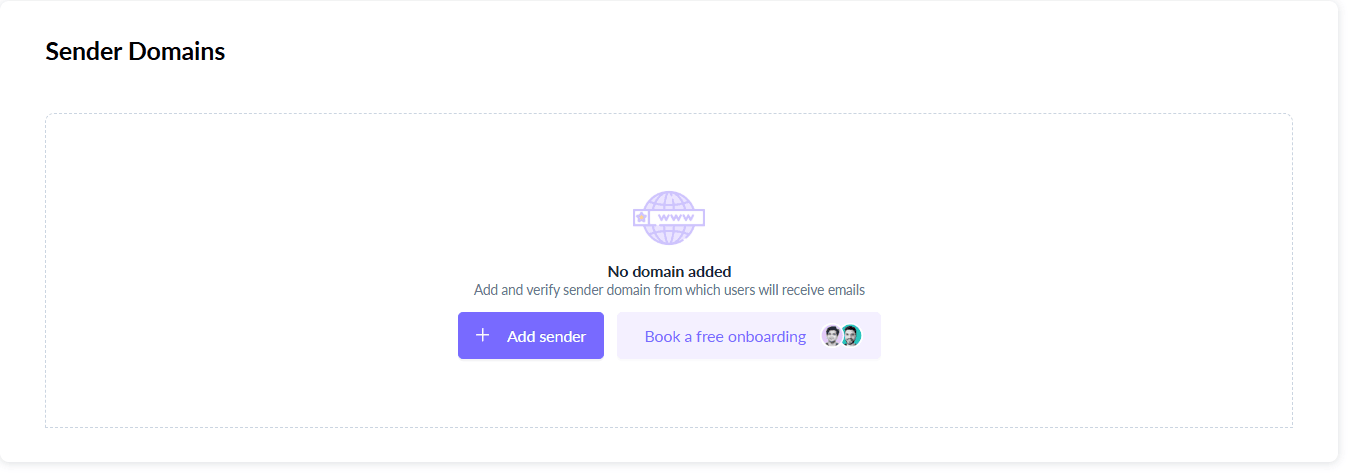
Go to Settings → Sender Domains
Click + Add Sender
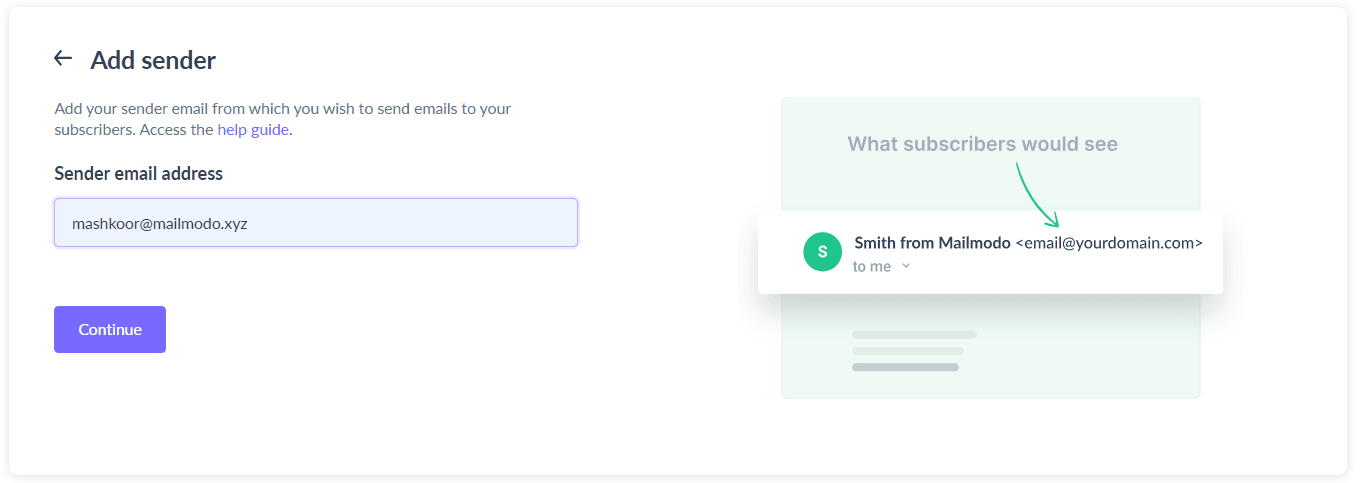
Enter any sender email from your domain, like info@yourdomain.com
A form will prompt you to get your sender email AMP approved by filling the form. This is optional and you can skip this to complete later.

Another popup will then prompt you to configure Mailmodo SMTP to send emails with your custom domain. You can simply follow the steps shown in the popup to complete the setup or share it with your developer.

Once these are verified, your domain will be authenticated and ready to use.
Tip: DNS verification may take up to 24 hours, depending on your registrar.
You only need to do this once per domain — regardless of how many sender emails you plan to add later.
Step 2: Add sender emails under the domain
Once your domain is verified, you’ll be able to see the sender domain and the sender email you added under it.

To add a new sender email under the domain:
Click + Add Sender
Enter a new address like bonjour@mailmodo.xyz and click on continue and choose your SMTP setup.

You can then fill out the AMP approval form, as discussed in step 1.
Configure SMTP by following the steps shown in the popup.

Save the sender. It’s now ready for use in your email campaigns. You should be able to find it under the sender domain as mentioned in the email address.
You can repeat this process for as many sender emails as needed, all under the same verified domain.
Takeaways
Adding multiple sender emails under one verified domain gives you better control, clearer communication, and improved inbox placement. When done right, it keeps your email ecosystem scalable, compliant, and easy to manage across departments or campaigns.
Mailmodo’s setup ensures you only need to verify your domain once, after which you can confidently manage as many sender emails as your email strategy demands.