5 ways to localize your email campaigns
You can localize various aspects of your email campaign using Mailmodo. Let's take a look at them one by one
1. Segmenting users
You can segment your customer base on various criteria, but in terms of localization, it will be based on language, country, or region. That’s one of the strongest factors to segment on.
To do it in Mailmodo:
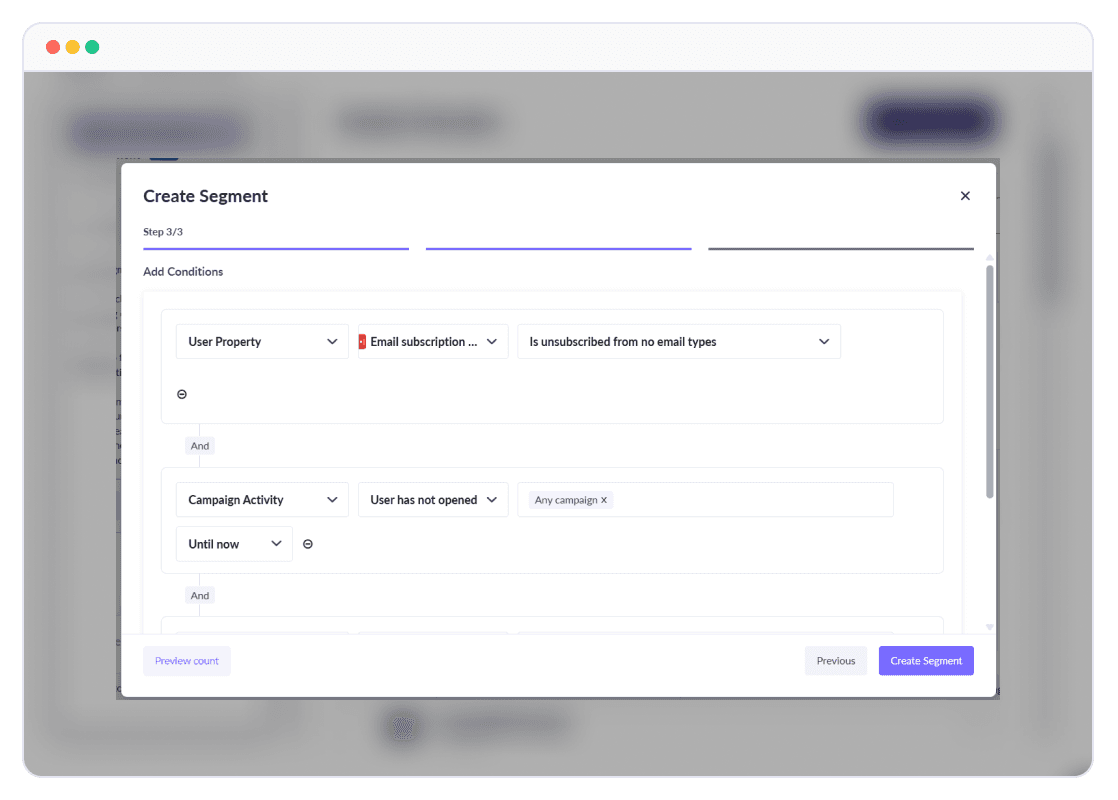
Go to Contacts → Create segment → Create with builder
Give your segment a name, like “French Users,” and select the contact list.
Set user property like language equals "fr" or country equals "France" and create your segment.
You can also use the AI segmentation feature to do this.
2. Personalize text using personalization parameters
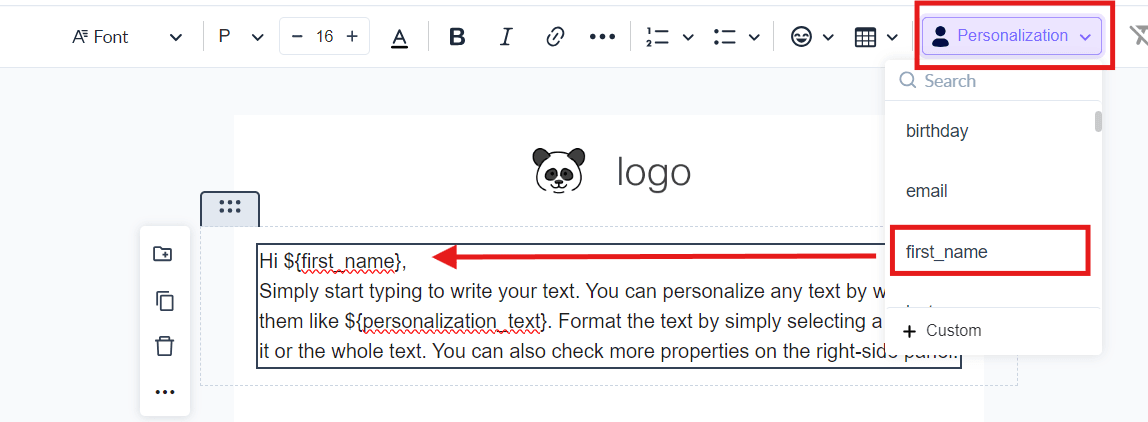
You can use contact properties to add personalized content to your emails. You could be using a custom greeting in their local language or currency or even salutations.
First, ensure your segment includes the field you want to include.
In your email template, click on the personalization option and select the property you want to add.
Note: Mailmodo does not support conditional logic in content. For multi-language campaigns, create separate templates for each segment.
3. Match the visual style to local preferences
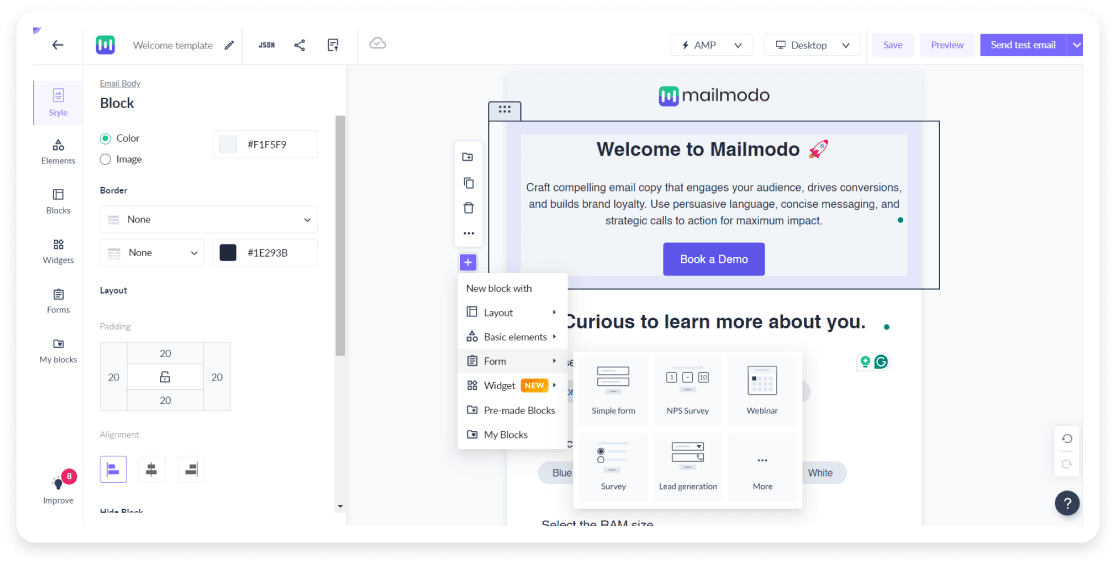
Culture influences how people interpret colors, imagery, and layout. With Mailmodo’s email editor, you can leverage this and:
Customize images: Replace generic visuals with region-specific photos, icons, or illustrations that resonate with the local audience.
Adjust colors and fonts: Use culturally appropriate colors and font styles to convey the right tone and emotion.
4. Send emails in the recipient’s local timezone
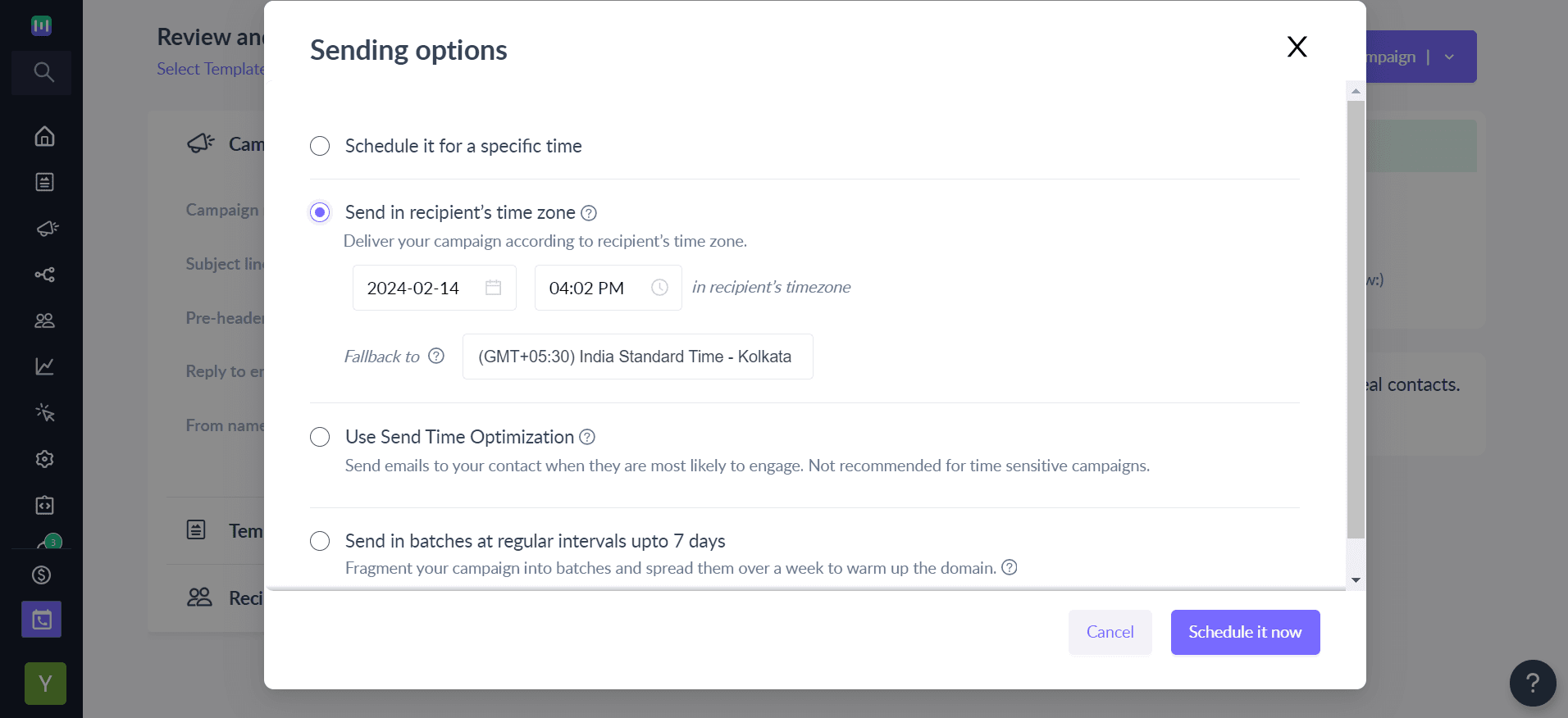
Avoid sending a campaign at midnight to users on the other side of the world. Instead, schedule emails to land when your recipients are active.
While scheduling your campaign in Mailmodo, choose “Send in recipient’s local time” and choose the time to automatically adjust delivery time per user.
5. Use a local-sounding sender name and domain
Even before users open your email, your sender name and address influence their decision of opening your email or not. Make the sender name feel familiar. To do this:
Go to Settings → Default sender domain tab.
Add a localized sender email (e.g., offers@brand.in, deals@brand.fr)
During campaign setup, select that sender address
Customize the From name (e.g., “Eloise from Brand” for France )
This small touch adds legitimacy, a familiar touch, and helps users trust that your message is meant for them.
Final thoughts
When it comes to localizing your email campaigns, consistency and careful monitoring are key. Don’t rush to change every element for every region at once—small, thoughtful adjustments usually perform better.
Focus on tracking engagement metrics, open rates, and click-throughs for each localized segment. If a particular approach consistently drives higher engagement, stick with it. If performance dips or a segment shows low interaction over time, it’s time to tweak your strategy.