Adding forms in emails traditionally involves writing custom HTML code and stitching together complex interactivity using JavaScript. But there's a much simpler — and more effective — solution: Mailmodo.
Instead of wrangling with code, Mailmodo lets you create and embed fully functional, interactive forms directly inside your emails with just a few clicks.
It offers two core types of forms, depending on your use case:
Best for: Surveys, referrals, signups
Simple forms are ideal for basic data collection. Think of them like quick lead capture forms or single-question NPS surveys.
Step 1: Open your email template in Mailmodo editor.
Step 2: Choose the ‘Form’ tab from the left menu bar and drag the Simple Form block into your layout.
https://res.cloudinary.com/mailmodo/image/upload/v1754460975/strapi/How_to_add_forms_in_email_74af379985.png
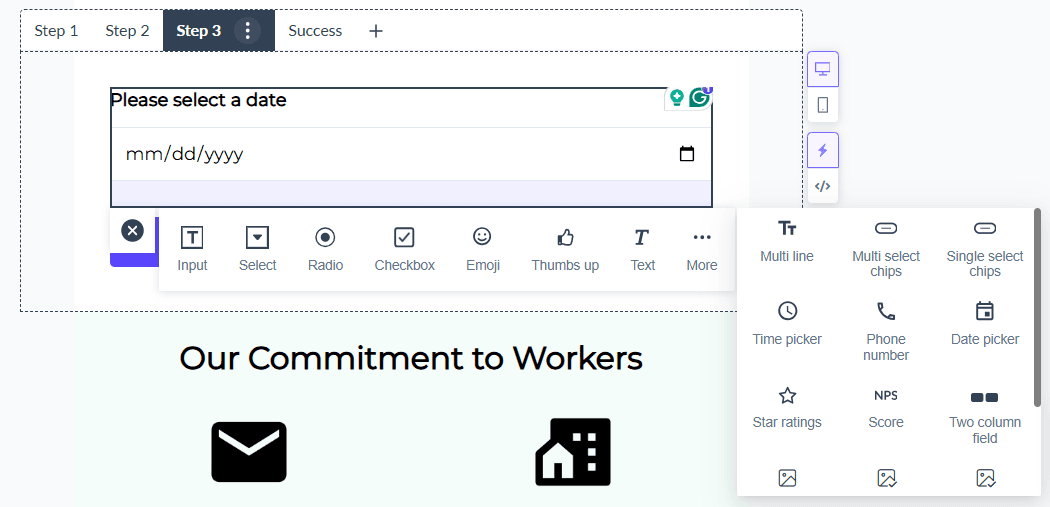
Step 3: Customize the form by adding your desired fields or questions and defining the response type, options, etc. You can also add multiple steps to the form.
https://res.cloudinary.com/mailmodo/image/upload/v1754460975/strapi/How_to_add_forms_in_email_1_7a71628b5a.png
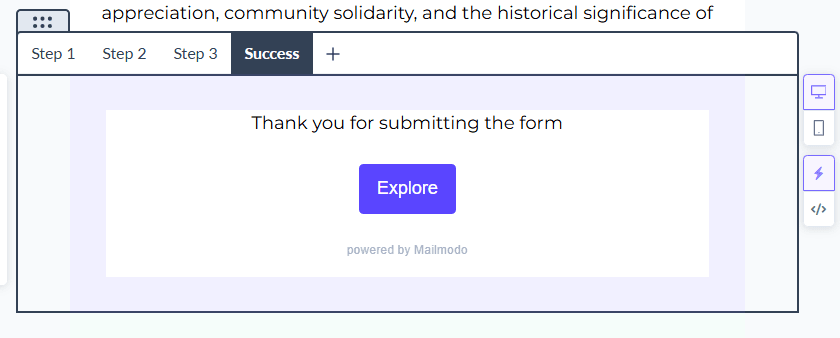
Step 4: Set up a success message or redirect when the submission is done.
https://res.cloudinary.com/mailmodo/image/upload/v1754460975/strapi/How_to_add_forms_in_email_2_d88f2fde85.png
Once this is done, you can test your form and send it to your recipients.
Best for: Quizzes, calculators, product recommendations, registrations
Advanced Forms are powerful, interactive, and highly customizable. You can use them to guide users through multi-step journeys based on their responses.
Step 1: Open the email template in Mailmodo that you want to add the form to.
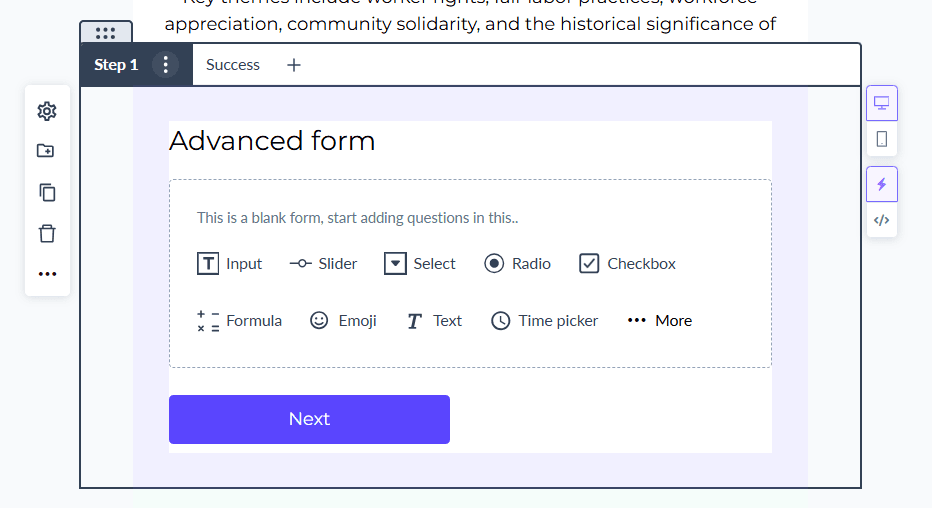
Step 2: Navigate to the Forms section and drag and drop the Advanced form block to the template.
https://res.cloudinary.com/mailmodo/image/upload/v1754460975/strapi/How_to_add_forms_in_email_3_0ba53fedba.png
Step 3: Define the specifics of the form by adding questions and field names and input types, etc.
https://res.cloudinary.com/mailmodo/image/upload/v1754460974/strapi/How_to_add_forms_in_email_4_33c0b399e5.png
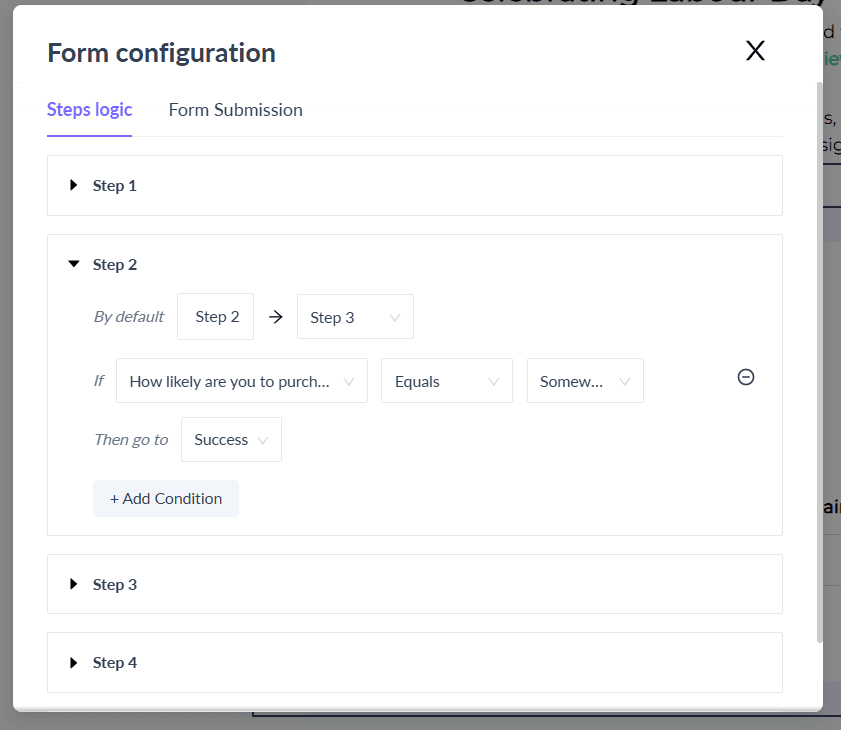
Step 4: Configure the logic or conditions of the form to define different questions for different responses.
https://res.cloudinary.com/mailmodo/image/upload/v1754460975/strapi/How_to_add_forms_in_email_5_5a572b0f5c.png
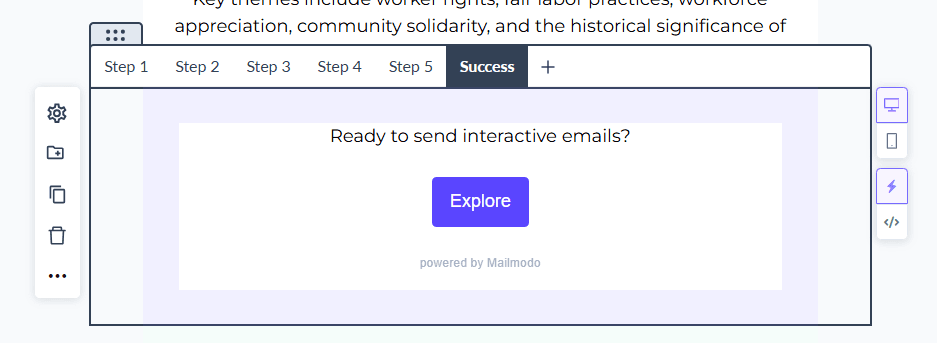
Step 5: Set up the final success message to display after form submission.
https://res.cloudinary.com/mailmodo/image/upload/v1754460974/strapi/How_to_add_forms_in_email_6png_44ab12cab2.png
Once this is done, you can test your form and email and send it to your recipients post testing.
Conclusion
Embedded forms in emails aren’t just a “nice to have” — they’re a proven way to boost response rates and reduce friction.
Whether you need a quick poll or a multi-step lead qualification quiz, Mailmodo gives you the tools to build, test, and scale form-based engagement — all within the inbox.
Start embedding smarter forms in your emails — and turn passive readers into active responders.