





Stand out on LinkedIn with Mailmodo free text formatter
Posting content on LinkedIn content can be chore as the linkedin editor messes up your styling when you copy-paste. Our free text formatter makes the editing process easy. Just type what you want to share, apply bold, italics, line breaks, or bullet points, and get a clean, professional version ready to paste directly into LinkedIn - in seconds.
How does Mailmodo LinkedIn text formatter work
To use the LinkedIn text formatter online:
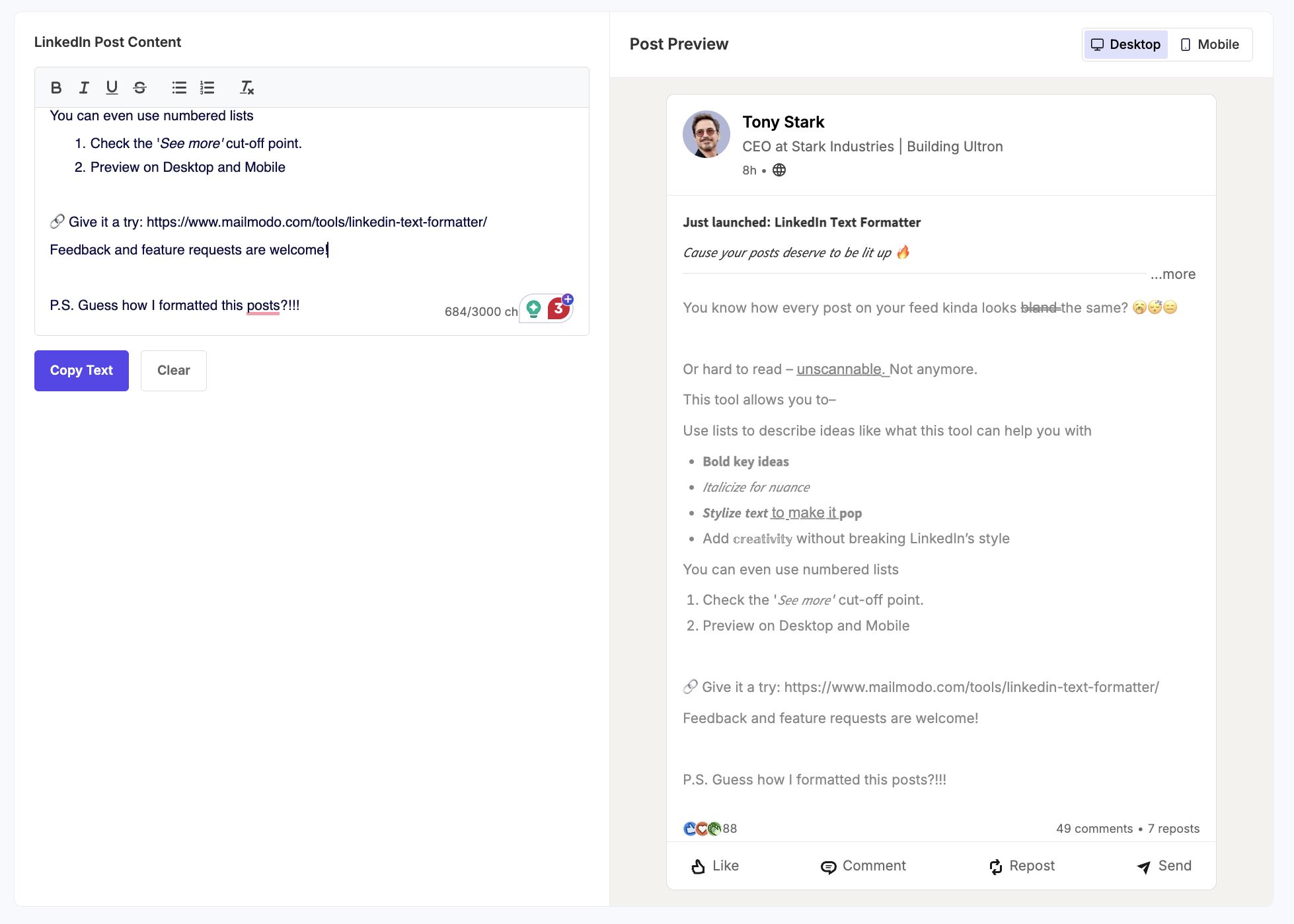
Start by typing or pasting your LinkedIn post into the text box.
Add formatting elements like bold, italics, bullet points, or line breaks to make your content stand out.
Preview how your post will look on LinkedIn.
When you’re happy with the preview, click the “copy text” of the LinkedIn Post Content box.
Finally, paste the formatted text directly into LinkedIn’s post editor to see your post exactly as shown in the preview.
Our LinkedIn text formatter tool makes sure what you see is exactly what appears on LinkedIn:
If you're planning to promote your content through ads, check out our guide on LinkedIn advertising to ensure your formatted posts perform well in paid campaigns too.
Common LinkedIn text editor issues and how to fix them
Below are some common issues users run into when using the tool, along with simple fixes to help you get properly formatted posts on LinkedIn.
- Extra line breaks or spacing issues
LinkedIn editor processes whitespace differently than most text editors. Line breaks added for visual spacing may show up as large gaps after pasting.
To prevent it, before copying, check the Desktop/Mobile preview toggle to see how your post will show up. If anything looks off, adjust the spacing in the editor first.
- Characters not showing properly on LinkedIn
Some Unicode symbols, like fancy arrows, cursive characters, and certain emojis, may not render correctly across devices or browsers.
To keep your post looking clean, stick to basic formatting like bold, italics, or underline. Additionally, use emojis that are widely popular and display well across both desktop and mobile devices.
- Copy button not working
Sometimes the Copy Text button might not work because of browser permissions or certain extensions blocking clipboard access.
If that happens, try refreshing the page first. If it still doesn’t work, go to your browser settings and check whether clipboard permissions are enabled for the site you're using.
And if you're also looking to improve your email communication, Mailmodo is a powerful email marketing platform designed to help you craft, send, and track interactive campaigns that get results.