What is email development?
Email development is the art and science of crafting custom emails using HTML. This approach lets you create unique emails from scratch. You also get to decide every single detail of your email like the layout, colors, and even interactive elements like buttons.
In case you're wondering, web development and email development are very different. The former involves front-end, back-end, and sometimes full-stack coding, using languages like HTML, CSS, JavaScript, and server-side languages.
Whereas email development creates email templates that render well across various email clients. It's more restrictive, and involves coding using HTML, styling using inline CSS and table-based layouts to ensure compatibility.
Benefits of email development
HTML email development opens the door to endless creative possibilities. It's the key to standing out in crowded inboxes and delivering a memorable user experience. Here are the benefits you can reap:
Full customization: Complete control over the design, allowing for brand consistency and unique layouts.
Interactivity: Embed forms, buttons, or animations within the email to engage your audience.
Targeted content: Use HTML to personalize emails, showing different content to different audience segments.
Better analytics: Track user interactions more precisely, like clicks and time spent reading the email.
Professionalism: Custom HTML emails usually look more polished and professional than standard emails or restrictive email templates.
Competitive edge: A well-crafted HTML email can set you apart from your competitors and make your message more memorable.
Challenges of HTML email development
HTML email development is a rewarding but tricky endeavour. The road to creating effective and visually appealing emails can be challenging. Here are some challenges you're likely to encounter if you’re developing your own email.
- Code complexity: HTML emails often require more complex code than regular web pages, making them harder to develop and maintain.
Additionally, for people who don't know how to code, this option isn’t viable. While AI code generation tools can help streamline some of the development process, they may not fully address the complexities of email-specific HTML. Alternatively, you can use an affordable ESP like Mailmodo to avoid the hassle of coding and create beautiful emails in under 1 minute with our ready-to-use templates.
Inconsistent rendering: Different email clients have their own rules for displaying HTML codes, leading to inconsistent appearances.
Limited CSS support: Not all CSS properties are supported by every email client, restricting design options.
Triggering spam filters: Certain elements in your HTML email can trigger spam filters, affecting deliverability.
Accessibility for people with disabilities: Making your emails accessible to everyone, including those with disabilities, adds another layer of complexity.
💡Related guide: Pros and Cons of coding an HTML email design
How to develop an email with HTML?
Creating an HTML email is a multi-step process that involves structure, styling, and advanced techniques. To develop an email with HTML, start by creating an HTML document and setting up the basic structure. You can then style your email using inline CSS to ensure compatibility across different email clients.
HTML email structure
Understanding the basic structure of an HTML email is the first step in the development process.
Basic structure
Every HTML email starts with a basic HTML skeleton. Here's a simple example:
<!DOCTYPE html>

<html>

<head>

<title>Your Email Title</title>

</head>

<body>

<!-- Your email content goes here -->

</body>

</html>
Head section
The <head> section contains meta-information and links to stylesheets, although inline styles are often preferred in emails.
<head>

<meta charset="UTF-8">

<title>Your Email Title</title>

</head>
Body section
The <body> section is where your email content lives. You'll use various HTML elements to structure your email here.
<body>

<h1>Welcome to Our Newsletter</h1>

<p>Here's what you need to know.</p>

</body>
Common elements for email
There are many elements which we can include in an email to make it more engaging, easily navigable and visually appealing. Here are some of the elements with code samples:
- Heading: This is how you can add a heading
<h1>This is a Heading</h1>
- Paragraph: This is how you can add a paragraph
<p>This is a paragraph.</p>
- Link: This is how you can add a link
<a href="https://example.com">This is a link</a>
- Forms: This is how you can add a form
<form action="/submit">

<input type="text" name="username" placeholder="Username">

<input type="password" name="password" placeholder="Password">

<input type="submit" value="Submit">

</form>
- Lists: This is how you can add a list
<ul>

<li>Item 1</li>

<li>Item 2</li>

<li>Item 3</li>

</ul>
- Quotes: This is how you can add a quote
<blockquote>

This is a quote.

</blockquote>
- Table: This is how you can add a table
<table>

<thead>

<tr>

<th>Header 1</th>

<th>Header 2</th>

</tr>

</thead>

<tbody>

<tr>

<td>Data 1</td>

<td>Data 2</td>

</tr>

</tbody>

</table>
💡Related guide: How to Create an HTML Email Table for Your Email?
Styling HTML emails
Styling is crucial for making your email visually appealing.
** 1. Inline CSS for styling**
Inline CSS is often used to ensure consistent rendering across email clients. Here’s a sample code:
<p style="font-size: 16px; color: blue;">This is a styled paragraph.</p>
This code makes your font size 16px and the font color blue for the text ‘This is a styled paragraph.’
Typography and fonts
Web-safe fonts are your best bet for consistent rendering.
<p style="font-family: Arial, sans-serif;">This is text with Arial font.</p>
The code will help you set Arial as the font for the text inside the paragraph. If Arial is not available, it falls back to any sans-serif font.
Backgrounds and colors
Use inline CSS to set background colors.
<div style="background-color: #f2f2f2;">This is a background.</div>
The code sets the background color of the div element to a light gray, represented by the hex code #f2f2f2. The text "This is a background" will appear over this light gray background.
Borders and padding
Borders and padding can be set using inline CSS.
<div style="border: 1px solid black; padding: 10px;">This is a box.</div>
The code creates a div element styled as a box. It has a 1px solid black border and 10px of padding on all sides. The text "This is a box" appears inside this box.
Advanced techniques
Once you're comfortable with the basics, you can explore more advanced features.
Interactive and dynamic email elements
You can use HTML and CSS to create interactive elements like buttons.
<button style="background-color: blue; color: white;">Click Me</button>
The code creates a button with a blue background and white text. The text "Click Me" is displayed on the button.
Animated GIFs and videos in emails
While not all email clients support videos, most do support GIFs.
<img src="your-animated.gif" alt="Animated GIF">
The code embeds an animated GIF image into the webpage. The src attribute specifies the source file, and the alt attribute provides alternative text, "Animated GIF," for screen readers or if the image fails to load.
Personalization and dynamic content
Personalization can be achieved through server-side code that generates dynamic HTML content.
<p>Hello, {{username}}!</p>
The code shows a paragraph with the text "Hello, {{username}}!". The {{username}} is a placeholder, typically used in template engines to dynamically insert the value of the username variable when the page is rendered.
By understanding these elements and techniques, you'll be well-equipped to create effective and visually appealing HTML emails.
9 Best practices for HTML email development
Ensure your design is mobile-friendly to retain user engagement.
Implement media queries to adapt to various screen sizes.
Validate appearance and functionality across multiple email platforms.
Prepare for and resolve common rendering issues.
Use tools that can automatically put your styles inline.
Use compressed images to speed up load time and add descriptive alt text for all.
Choose widely supported fonts, and use language that won't flag spam filters.
Implement clear HTML tags for better accessibility.
Create a set of guidelines and reusable code snippets to streamline your development process,
Alternative to HTML email development
While HTML is a robust choice for email development, it won't be easy for you to set up if you don’t know how to code. Therefore, you can consider other email service providers like Mailmodo.
Mailmodo offers you two ways to design your email:
1. Use AI template builder
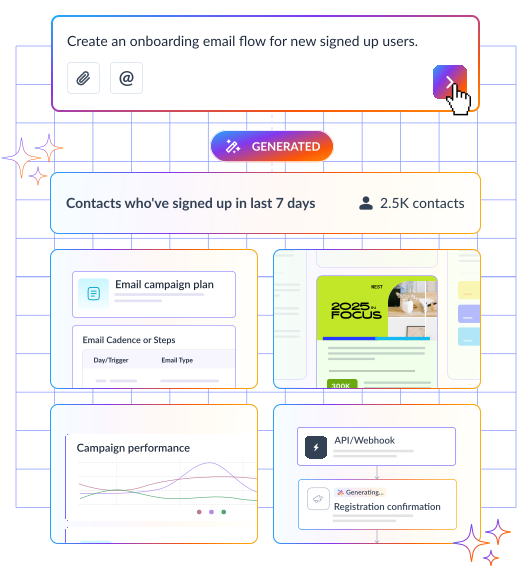
The AI Template Builder makes creating HTML emails faster and more intuitive. Instead of manually coding every element, you provide the AI with a few key details, such as your campaign goal, target audience, and preferred style.
The AI then generates a fully designed email template, complete with suggested layouts, color schemes, images, and call-to-action placements.

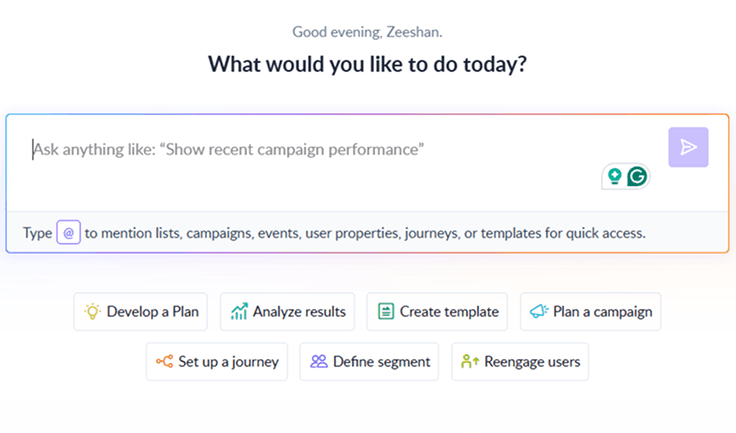
Your AI Assistant for Everything Email Marketing
2. Start from scratch
If you want to create an email from scratch, the steps are extremely simple. No coding, or complex programming needs to be done. Here's how you can do it:
Step 1: Create an account in Mailmodo
Step 2: From the action bar on the left side, select the Templates section
Step 3: Choose the option to "Create new template"
Step 4: Click on the "Start from scratch" option
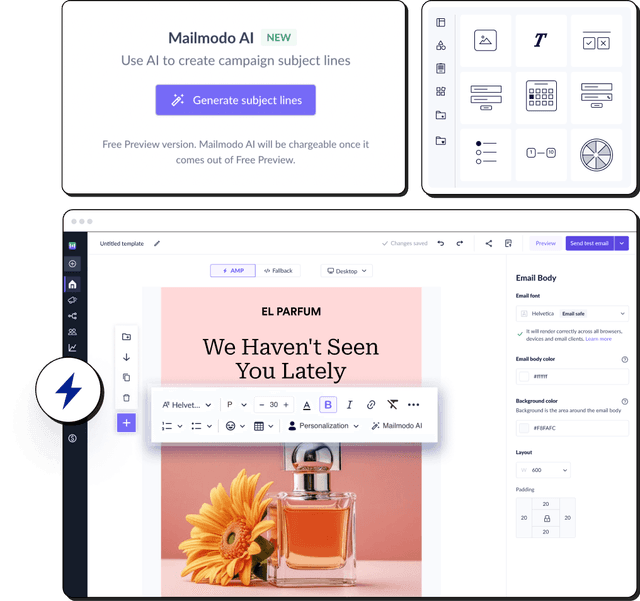
Step 5: After selecting, you will be redirected to the drag-and-drop editor where you'll be able to add all your desired elements and build a template from scratch.
If you need more help, please visit our help guide for further steps.
Conclusion
HTML email development is a challenging but rewarding skill. It offers endless creative possibilities, provided you're willing to tackle its complexities. With the right approach and tools, you can create emails that are not only beautiful but also effective. In this guide, we’ve also included an alternative and a much easier way to build your own custom emails without giving up on the best part of HTML emails: interactivity.
So, use this guide to develop your own emails and take your email marketing campaigns to the next level.