What is email tracking?
Email tracking, also known as email analytics, is a process of monitoring and analyzing the performance of your email campaigns. It involves gathering data on various metrics such as open, click-through, bounce, and conversion rates to understand how your emails resonate with your audience.
By tracking these metrics, you can determine which subject lines perform best, identify the most engaging content, and assess the impact of different call-to-action buttons. This enables you to create better, more personalized and targeted email campaigns, ultimately increasing your chances of success.
Why should you use email tracking?
Email tracking provides you with insights into how recipients engage with your emails. You can evaluate the effectiveness of your campaigns and make informed decisions to improve future results. Here are some key reasons why email tracking is essential:
1. Measure campaign performance: Email tracking provides valuable data on how your campaigns are performing, allowing you to identify which campaigns are performing well and which aren’t. This allows you to learn from the good-performing ones and improve those who aren’t performing well.
2. Understand recipient behavior: Tracking metrics like open rates and click-through rates provide insights into how recipients interact with your emails. Combining that with A/B testing can help you understand what works with your audience and tailor your content and design to better resonate with them.
3. Improve email deliverability: Tracking email metrics can help you identify potential deliverability issues, such as high bounce rates or spam complaints. Addressing these issues can improve your email deliverability and ensure your messages reach the intended recipients’ inboxes.
How to set up Google Analytics for email tracking
Google Analytics is a widely used tool for tracking website performance, but it can also be leveraged for email tracking. While it may not provide individual user metrics, it can still offer valuable insights into your email campaigns. We’ve discussed two things that you must set up when you’re using Google Analytics to track your emails.
1. Tracking email opens with Google Analytics
Here's a step-by-step guide on how to set up tracking email opens with Google Analytics:
Step 1: Sign up for a Google Analytics account
If you don't already have a Google Analytics account, sign up for one. If you already use Google Analytics to analyze your website's traffic, you can use the same account for email tracking.
Step 2: Create a tracking pixel
To track email opens with Google Analytics, you need to add a "tracking pixel" to your email. The tracking pixel is a small JavaScript code that sends information about the email open to Google Analytics. Here's how you can create a tracking pixel:
- Start with the following code snippet:
img src="https://www.google-analytics.com/collect?v=1&..."/
- Add additional parameters to the tracking pixel code. These parameters include:
1. User ID (&uid): If you're using a user ID to track users cross-device, you can include it for email tracking as well.
2. Events (t=event): Email opens should be tracked as events.
3. Event category (&ec): Represents the category of the event, such as "emails."
4. Client ID (&cid): A tracking ID you can assign to recipients.
5. Event action (&ea): Represents the event action, such as "email open."
6. Document title (&dt): Specifies the subject line of the email.
7. Document path (&dp): Specifies the path of the tracked item.
8. Event label (&el): Allows you to assign a unique ID to the recipient of the email.
The final version of your tracking pixel will look something like this:
<img src="https://www.google-analytics.com/collect?v=1&tid=UA-XXXXXXXX-1&cid=555&t=event&ec=emails&ea=open&dt=your%20email%20subject%20line">
Step 3: Embed the tracking pixel in the email body
Once you have created the tracking pixel, you need to embed it in the body of your email. Place the tracking pixel at the bottom of the email to minimize loading time. Keep in mind that some email programs, like Gmail, don't support HTML email composition. In such cases, you can use Chrome's Developer Tools to paste the HTML code into the Gmail Compose window.
Step 4: Send a test email
After embedding the tracking pixel, send a test email to yourself. Open the test email to check if Google Analytics captures the email open event. You can monitor real-time stats in Google Analytics by navigating to Realtime > Events.
2. Tracking email clicks with Google Analytics
In addition to tracking email opens, Google Analytics can also track email clicks. Here's how you can set up email clicks tracking with Google Analytics:
Step 1: Open Mailmodo URL builder
To track email clicks, you need to create trackable links with UTM parameters. You can use the Mailmodo URL Builder tool to generate these trackable URLs.
Step 2: Build your custom tracking URL
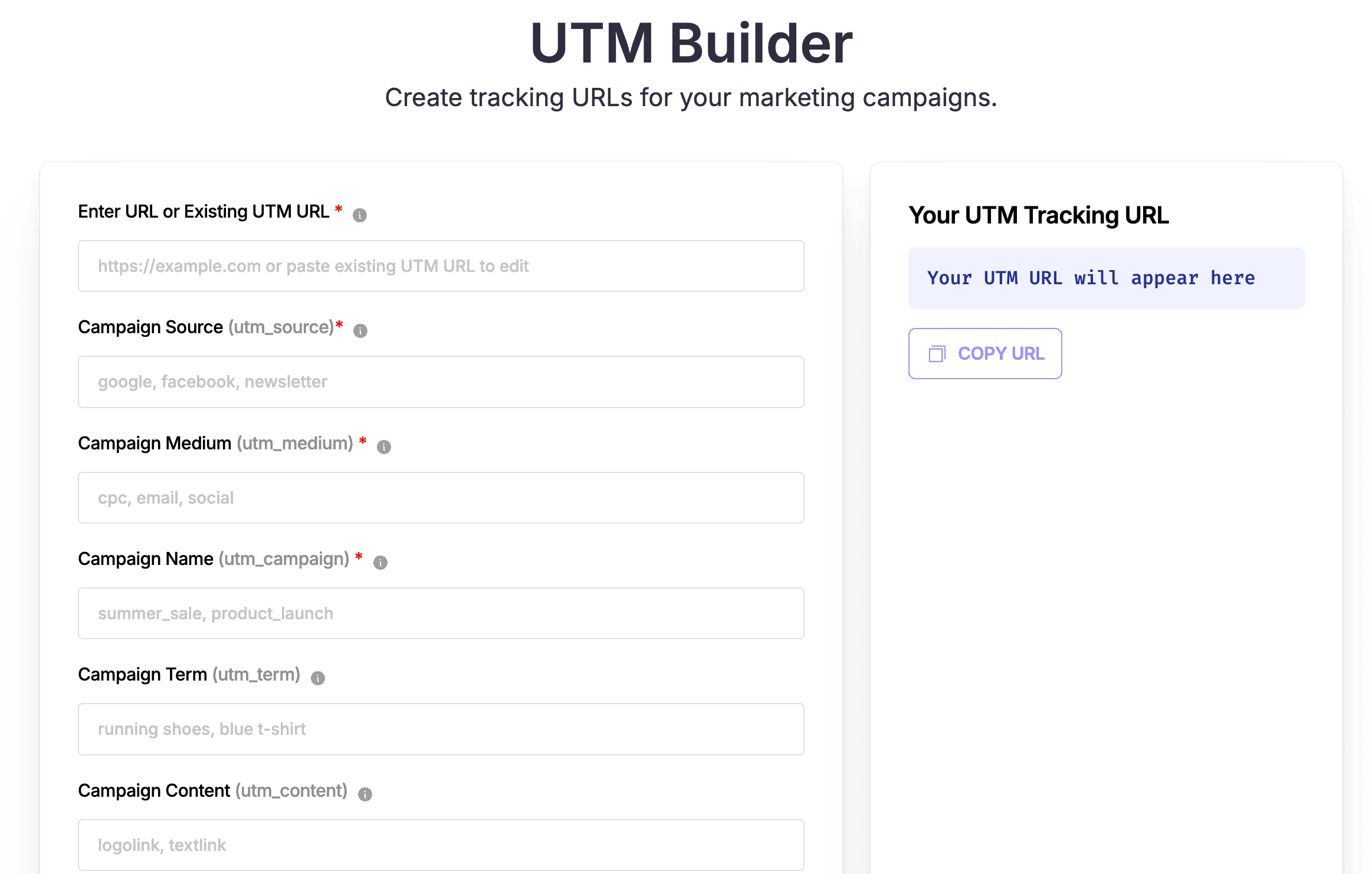
In the Mailmodo URL Builder, enter the website/landing page URL, campaign ID, campaign source, campaign medium, campaign name, campaign term, and campaign content. This will generate a unique tracking URL for your email clicks.
Step 3: Insert the URL in the email
Once you have generated the tracking URL, insert it as a hyperlink anywhere in the body of your email. This trackable URL will now be set up for email click tracking.
Step 4: Check the link clicks in Google Analytics
To view the link click data, you can check the real-time reports in Google Analytics. Navigate to the Realtime section and monitor the events related to email clicks.
While Google Analytics provides some level of email tracking capabilities, it does have its limitations. Let's explore these limitations and introduce an alternative solution, Mailmodo, that offers advanced email tracking features.
Limitations of Google Analytics email tracking
Google Analytics email tracking relies on a unique one-pixel image being downloaded to track email opens. However, with the introduction of the Google Image Proxy, the specifics of an "open" are obfuscated, making it challenging to gather accurate data. Here are some limitations of Google Analytics email tracking:
Pixel blockers: If recipients have pixel blockers enabled in their email clients, Google Analytics won't be able to track email opens.
Limited user metrics: Google Analytics doesn't provide individual user metrics essential for understanding recipient behavior and personalizing email campaigns.
No real-time notifications: Google Analytics doesn't offer immediate notifications or instant reports of email click activity in real-time.
Limited reporting: While Google Analytics provides basic email tracking reports, they are not as comprehensive as those offered by specialized email marketing platforms.
An alternative to Google Analytics email tracking
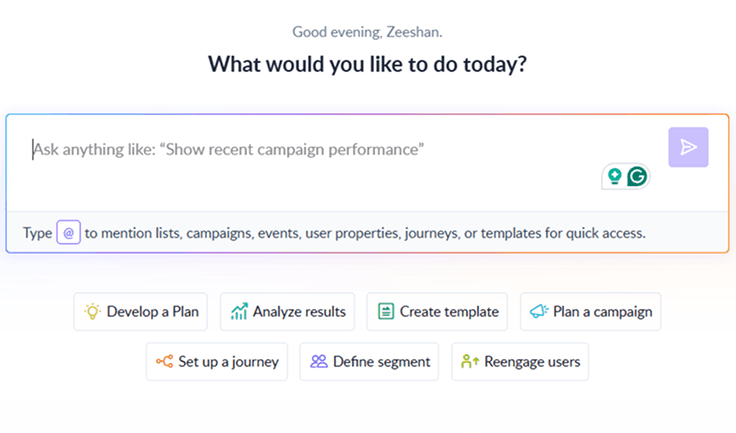
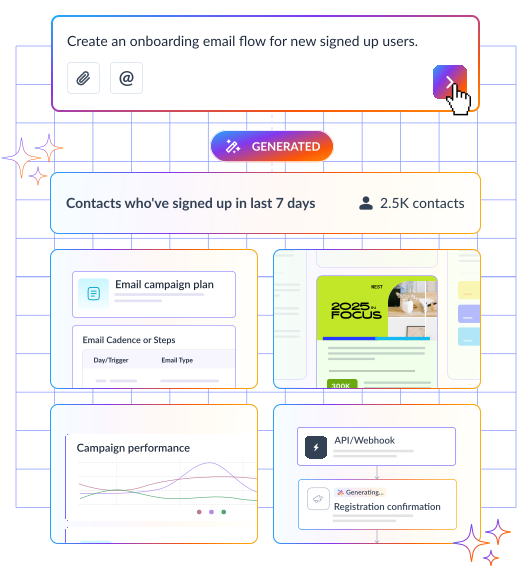
To overcome the limitations of Google Analytics email tracking, you can use an ESP like Mailmodo. It offers advanced email performance tracking features that help you understand performance faster and take action with confidence.
- AI Assistant: Ask questions in plain language to get instant insights from your campaign data.
- Dashboard: See all your metrics in one visual, easy-to-read view.
- Performance memory: Track historical performance to spot trends and understand what works best.
- Smart recommendations: Receive AI-driven suggestions to optimize subject lines, CTAs, visuals, and overall email strategy.

Your AI Assistant for Everything Email Marketing
Final takeaway
In conclusion, email tracking is a crucial aspect of email marketing, allowing businesses to evaluate the success of their campaigns and optimize them for better results. While Google Analytics offers some email tracking capabilities, it has limitations that can be overcome by using specialized email marketing platforms like Mailmodo. By leveraging advanced email tracking features, you can gain valuable insights into recipient behavior and make data-driven decisions to enhance your email marketing strategy. If Mailmodo sounds like a platform that suits your needs, book a call with one of our email experts today.