If you’re an ecommerce store owner, you already know that visitors browse a lot more products than they actually buy. They compare options, check prices, and often leave without taking the next step. This behavior is normal but it also means missed revenue if you don’t follow up.
One of the biggest challenges ecommerce teams face is re-engaging high-intent visitors who showed interest but didn’t add anything to their cart. Ads can help, but they’re expensive and not always timely. Email, on the other hand, lets you reach people who already know your brand and have explored your products.
That’s where a browse abandonment email sequence fits in. It helps you reconnect with shoppers, remind them of what caught their eye, and guide them back to purchase. In this guide, we’ll walk through how to build a complete browse abandonment email sequence for your ecommerce store.
Why should you use an email flow
Browse abandonment is a subtle but important moment in the ecommerce journey. Shoppers aren’t rejecting your product; they’re just not ready yet. Email works especially well here because it allows you to continue the conversation after they’ve left your site.
Email gives you direct access to people who have already signed up or purchased before. You can personalize messages based on exactly what they viewed, when they viewed it, and how often they return. You can also automate, so reminders arrive while the product is still fresh in their mind.
One reminder is rarely enough. Some users need social proof, others want alternatives, and some are waiting for a better price. A sequence of emails lets you address these different motivations across multiple touchpoints, instead of relying on a single message to do all the work.
What is a browse abandonment email sequence?
A browse abandonment email sequence is a set of automated emails sent to shoppers who viewed products on your website but left without adding them to the cart or completing a purchase.
These emails usually include product reminders, personalized recommendations, follow-ups, and incentives sent over a short period of time. The goal is to bring the shopper back and convert their browsing intent into a purchase.
How to build a browse abandonment email sequence
Building an email sequence can be easy if you’re following a well-defined set of steps. Here are the steps for you to follow:
Step 1: Plan your campaign
Planning sets the foundation for the entire sequence. Without clear goals and structure, browse abandonment emails can feel random or repetitive.
Start by defining what success looks like and how the sequence fits into your overall ecommerce lifecycle. Here are some key elements to outline in your plan:
Objective: Recover browse intent and drive first or repeat purchases
Audience: Logged-in users, subscribers, or past customers who viewed products
Messaging angle: Reminder → discovery → incentive
Number of emails: 3 emails
Timeline: Spread over 5–7 days
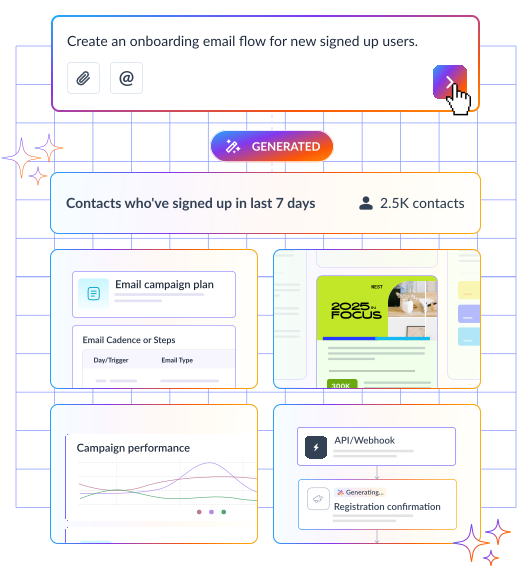
To speed this up, we used Mailmodo AI to generate a full campaign plan for a browse abandonment sequence. It defined the goals, number of emails, ideal timing, and the role of each email in the flow. We reviewed the plan, made small adjustments, and finalized the structure to turn it into an automated workflow instantly.
Take a look at the prompt we used. Click on the arrow to see the output we received.
Create a browse abandonment email campaign plan for an ecommerce brand. Include objectives, number of emails, theme of each email, ideal timing between emails, and the main CTA for each email.
Step 2: Create audience segments
Segmentation is what makes browse abandonment emails work. The more closely the email matches the shopper’s behavior, the higher the chance they’ll return. Instead of sending one generic reminder, segment users based on what and how they browsed.
Common segmentation attributes for ecommerce browse abandonment includes:
Product or category viewed
Number of product views
Time spent on product pages
Logged-in users vs first-time visitors
Past purchase history
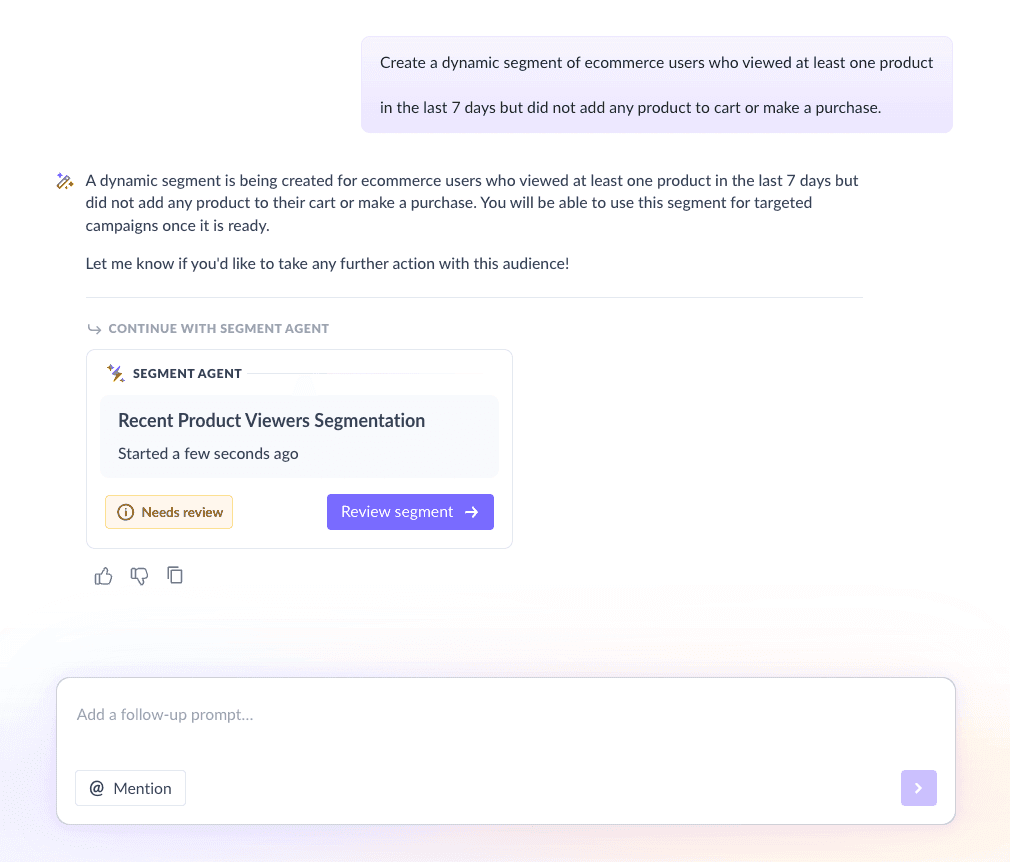
We used Mailmodo AI to create a dynamic segment of users who:
Viewed at least one product
Did not add any product to cart
Were logged in or subscribed
Browsed within the last 7 days
Once it was done, we got the option to review, make edits using the builder, or ask AI to carry out the changes we wanted. Once we confirmed, Mailmodo AI created the segment instantly and it was ready to use for our campaign.
Create a dynamic segment of ecommerce users who viewed at least one product in the last 7 days but did not add any product to cart or make a purchase.
Step 3: Create the email templates
Here’s a sample list of emails that you should be creating for your welcome email sequence. We’ve also included sample prompts that you can use in Mailmodo AI to generate these email templates in minutes instead of having to spend hours creating them.
Email #1: Browse abandonment email
When to send: Within a few hours of browsing
Purpose: Remind shoppers about the product they viewed
What to include:
Product image and name
Price and key benefits
Clear CTA to view product or add to cart
Here’s a sample prompt to generate this kind of email, along with the output it will produce.
Generate a browse abandonment email template for an ecommerce brand. Include dynamic product blocks, a short reminder message, and a clear CTA to view the product.
Email #2: Suggested products
When to send: 2–3 days after Email #1
Purpose: Reignite interest through alternatives or complements
What to include:
Similar or related product recommendations
Short explanation of why these products are relevant
CTA to explore products
Here’s a sample prompt to generate this kind of email, along with the output it will produce.
Generate an email for an ecommerce store that suggests similar or complementary products based on a user’s past browsing behavior. Include product cards and a browse CTA that leads to the product page.
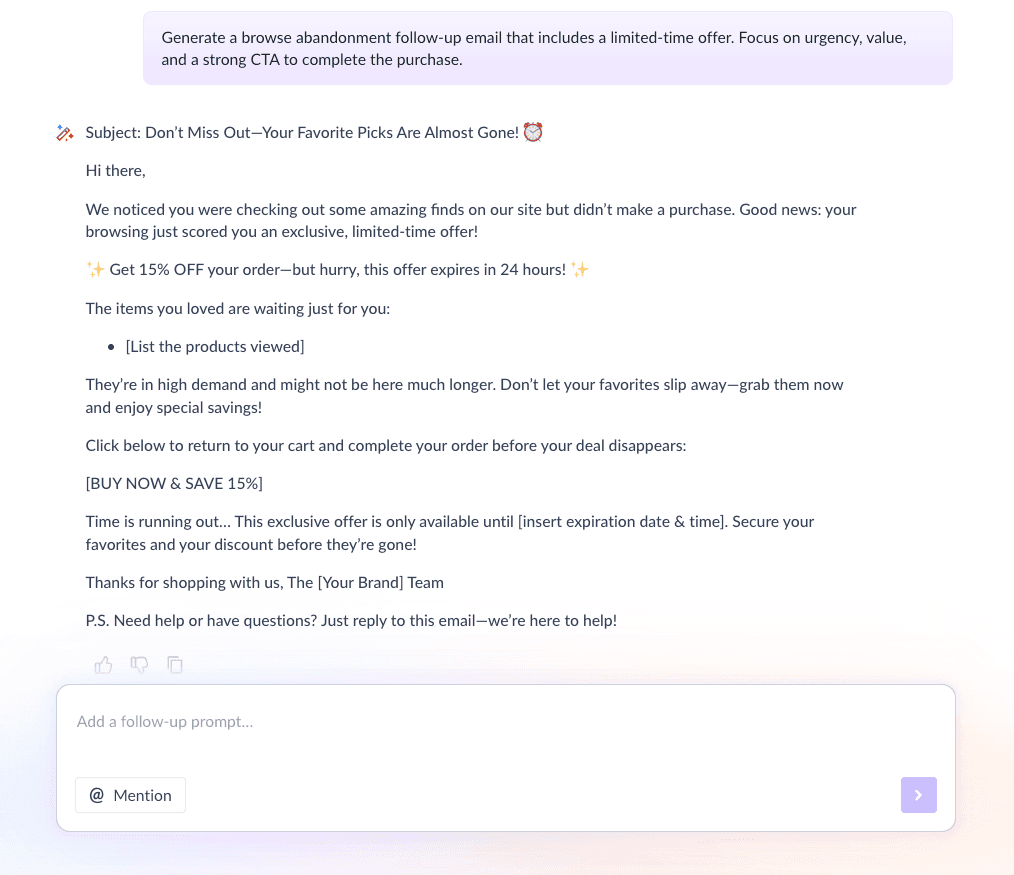
Email #3: Nudge with offers
When to send: 2–3 days after Email #2
Purpose: Overcome price hesitation
What to include:
Limited-time offer or discount
Urgency-driven copy
Reminder of previously viewed products
Here’s a sample prompt to generate this kind of email, along with the output it will produce.
Generate a browse abandonment follow-up email that includes a limited-time offer. Focus on urgency, value, and a strong CTA to complete the purchase.
Step 4: Build the automated workflow
Once your emails are ready, the next step is to automate them so the right email reaches the right person at the right moment. Here’s what your workflow should include:
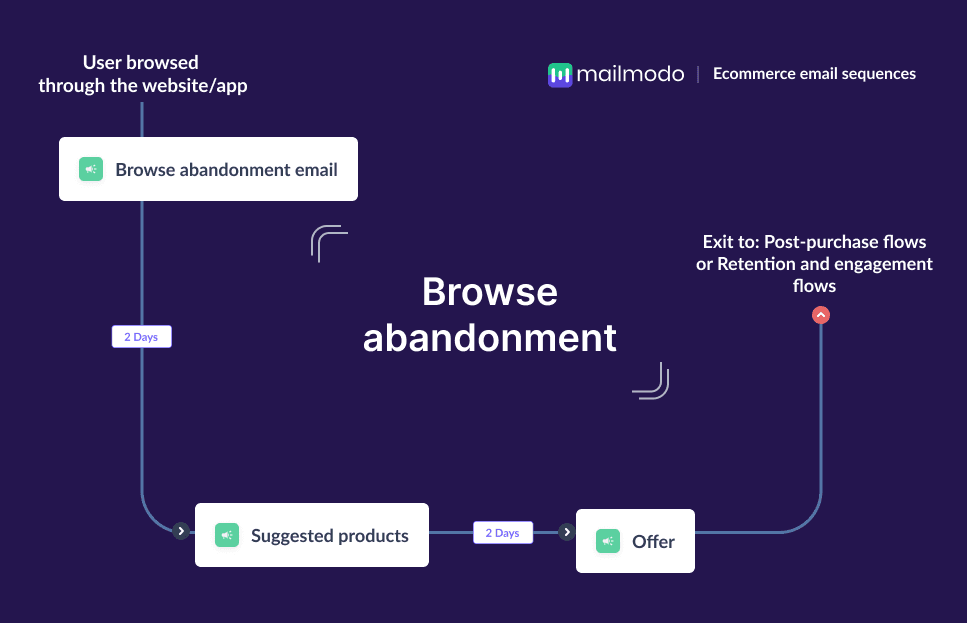
Trigger: User views a product
Delays: 0 hours → 2 days → 2–3 days
Branching logic: If purchase made → exit flow; If no purchase → continue sequence
Exit criteria: User completes a purchase or reaches end of sequence
We used Mailmodo AI to generate the complete browse abandonment workflow. It mapped triggers, delays, conditions, and exit rules in one go. After reviewing the journey, we asked the AI to fine-tune timing and logic to match our ecommerce buying cycle.
Take a look at the prompt that we used and the output we received.
Generate a complete automated workflow for an ecommerce browse abandonment email sequence. Include triggers, delays, branching logic, and exit criteria.
Step 5: Analyze and improve
A browse abandonment sequence should evolve based on performance. Tracking the right metrics helps you understand where users drop off and what drives conversions. Key metrics to track include:
Open rate
Click-through rate
Product views from email
Conversion rate
Revenue recovered
We asked Mailmodo AI to analyze our existing browse abandonment sequence and suggest improvements. It highlighted where engagement dropped and recommended changes to subject lines, timing, and CTAs.
Take a look at the prompt that we used and the output we received.
Analyze my ecommerce browse abandonment email sequence and recommend improvements

to increase clicks and completed purchases.
Conclusion
Browse abandonment is one of the most common moments in the ecommerce journey. Shoppers are already interested; you just need to bring them back at the right time with the right message.
A well-structured email sequence helps you do that by combining reminders, discovery, and incentives across multiple touchpoints. Email makes this scalable, personal, and easy to automate.
With tools like Mailmodo, planning, creating, automating, and optimizing browse abandonment sequences becomes much simpler. Once set up, these flows quietly recover revenue while you focus on growing your store.


 Learn more about Mailmodo